How to Add Link Previews to Your Website (Without Writing Code)
Learn how to add beautiful link previews to any website with one line of code. Works with WordPress, Webflow, Ghost, and more — no coding required.
Every time a visitor hovers over a link on your website, they face a choice: click and leave, or stay and miss the context. Link previews solve this — and Linkz.ai goes further. Not only does it preview links on hover, but when visitors actually click, the content opens directly on your page. No new tabs. No lost visitors.
In this guide, you will learn what link previews are, why they matter for engagement and SEO, and exactly how to add them to your website in minutes.
What Is a Link Preview?
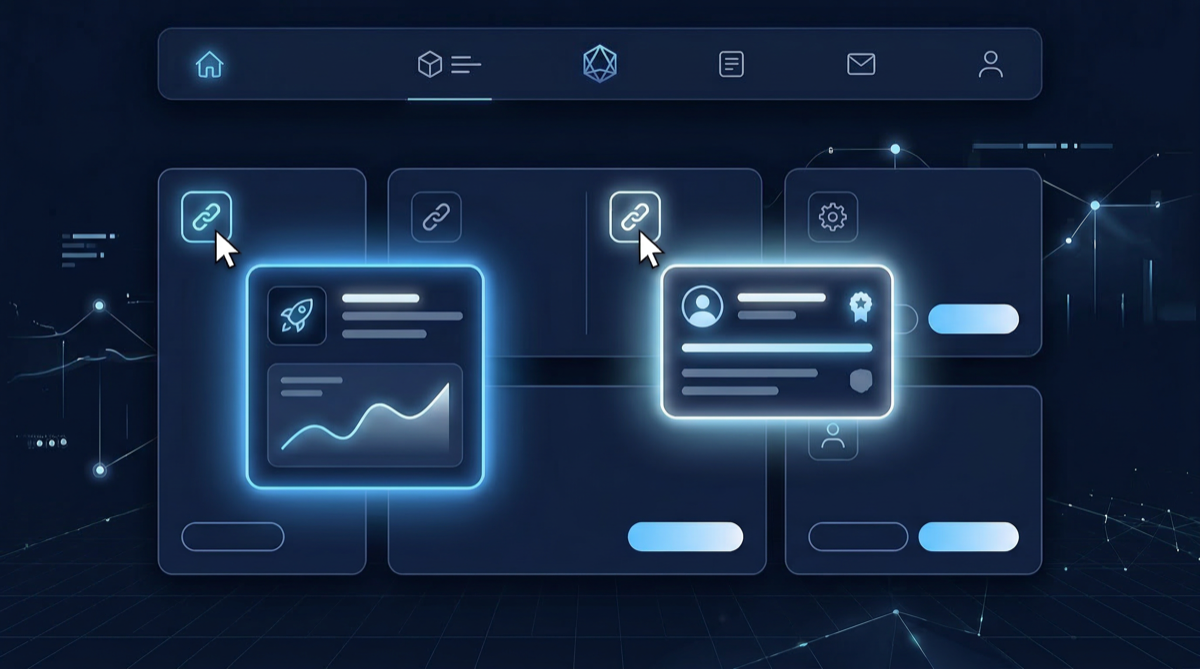
A link preview is an interactive enhancement to every hyperlink on your website. Depending on what the link points to, Linkz.ai does one of four things:
- Hover preview — a popup card appears showing the title, description, and thumbnail of the linked page
- Rich media preview on click — YouTube videos, Spotify tracks, tweets, and 1,000+ other media types open embedded inline on your page
- Article preview on click — linked articles and blog posts load their content within your page, keeping the reader in context
- File viewer on click — PDFs, Word documents, PowerPoint presentations, and Excel files open in a built-in viewer, no download required
All of this works for every visitor, regardless of which browser they use.
Why Add Link Previews to Your Website?
1. Reduce Bounce Rate
When visitors can preview or consume linked content without leaving your page, they are far less likely to disappear entirely. Websites using Linkz.ai see up to a 40% reduction in bounce rate.
2. Increase Session Duration
Visitors who understand what a link leads to — or can consume it inline — stay longer, read more, and explore more pages.
3. Better SEO Signals
Search engines factor in user engagement metrics. Lower bounce rates, longer session times, and more page interactions all contribute positively to your rankings.
4. Faster Page Loading
By replacing heavy YouTube embeds, Twitter widgets, and SlideShare iframes with lazy-loaded previews, your page loads significantly faster — improving Core Web Vitals scores.
How to Add Link Previews to Your Website
With Linkz.ai, adding link previews takes one line of code. No custom development, no complex setup, no maintenance.
Step 1: Sign Up for Linkz.ai
Go to linkz.ai and create a free account. No credit card required for the 14-day trial.
Step 2: Copy Your Script
After signing up, you will get a personalised script tag: <script src="https://cdn.linkz.ai/linkz.js?key=YOUR_KEY" defer></script>
Step 3: Add It to Your Website
Paste the script just before the closing </body> tag. Linkz.ai automatically detects all hyperlinks and adds the right type of preview to each one.
WordPress
Install the official Linkz.ai WordPress plugin. Activate it, enter your API key, done.
Webflow
Pages → Page Settings → Before </body> tag. See the Webflow installation guide.
Ghost
Settings → Code Injection → Site Footer. See the Ghost installation guide.
Any Other Website
Paste the script tag before </body> in your HTML. Linkz.ai works with any page.
Beyond Hover: Three More Ways Linkz.ai Keeps Visitors on Your Page
Rich Media Previews on Click
When a visitor clicks a link to rich media content, Linkz.ai opens it inline — no new tab, no navigation away. This works with over 1,000 providers.

Try these examples:
- Cold Heart by Dua Lipa & Elton John — YouTube video opens inline
- After Hours by The Weeknd — Spotify album plays without leaving the page
- Elon Musk's first tweet as Twitter CEO — tweet renders inline
- Customer survey example — Typeform loads within the page
See the full rich link previews demo for more examples.
Article Previews on Click
When a visitor clicks a link to an article, Linkz.ai loads the content inline — giving readers the context they need without abandoning your page.
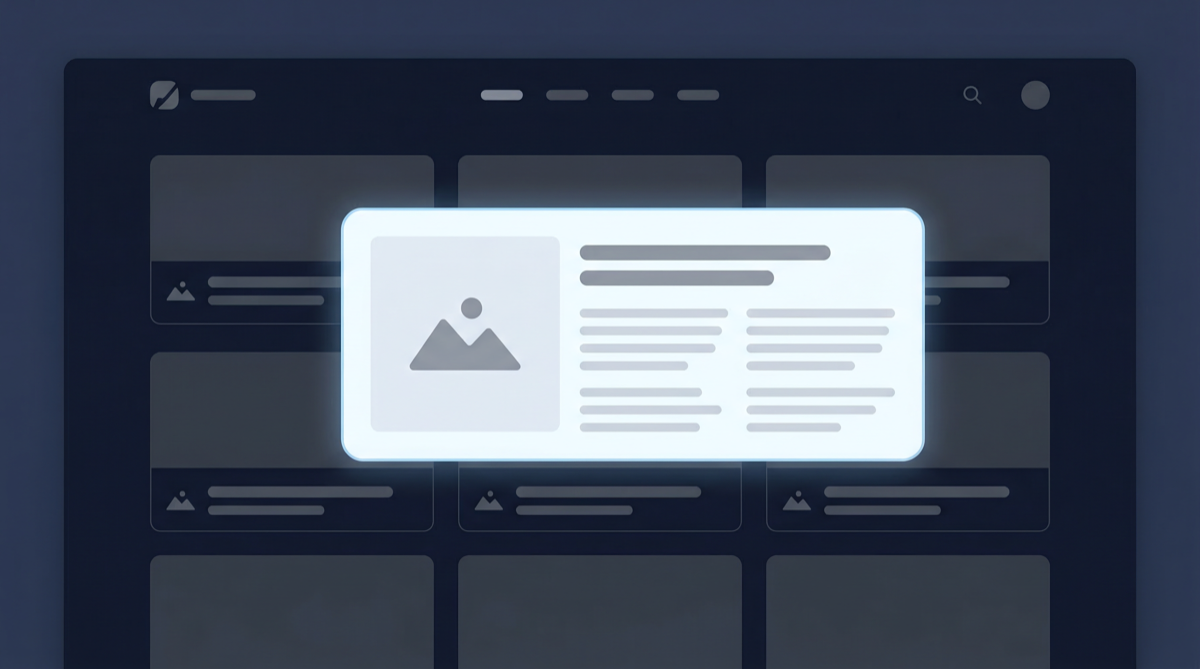
See article link previews in action — hover and click the links on that page to experience it yourself.
File Viewer on Click
Links to PDFs, PowerPoint presentations, Word documents, Excel sheets, and images open in Linkz.ai's built-in file viewer. No downloads needed.
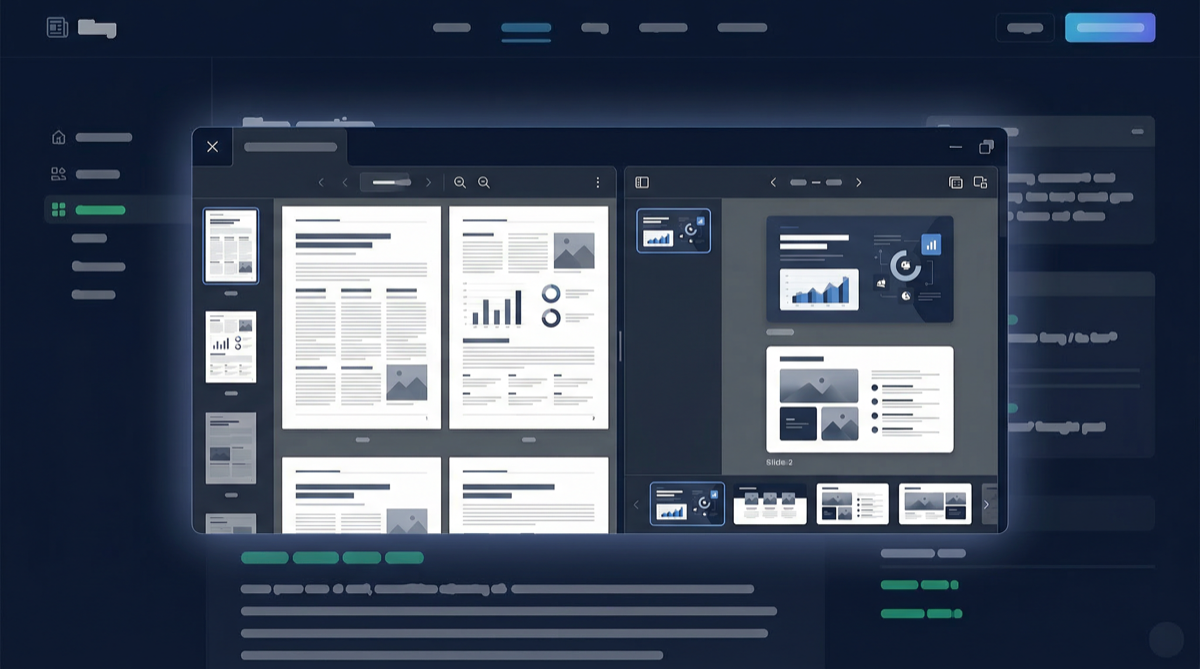
- Airbnb original pitch deck — PDF opens inline
- Pitch deck in PowerPoint — slides render in the viewer
- Emissions infographic — image opens with zoom capability
See the full file viewer demo.
Frequently Asked Questions
Does Linkz.ai slow down my website?
No — the script loads asynchronously and never blocks your page. Preview content is only fetched when a visitor hovers or clicks a link.
Will link previews work on mobile?
Yes. On mobile, link previews appear on tap rather than hover.
Does it work with external links?
Yes. Linkz.ai works with both internal and external links, fetching Open Graph metadata automatically.
Can I customise how the previews look?
Yes — dark mode, custom colours and styles to match your website design.
Is Linkz.ai free?
Free plan available plus a 14-day trial with all premium features. See the pricing page.
Start Adding Link Previews Today
One line of code delivers hover previews, rich media embeds, article previews, and a built-in file viewer — all automatically, zero maintenance.


